Hello World in Java on Mac OS X
This DrJava-based Java programming environment is no longer being supported
(because DrJava in no longer being actively developed and DrJava is incompatible with Java 11).
It has been replaced by the following IntelliJ-based programming environment for
Mac OS X.
This document instructs you on how to set up our Java programming environment for your Mac OS X computer. It also provides a step-by-step guide for creating, compiling, and executing a Java program using either DrJava or Terminal. All of the software used is freely available.
You will need a Mac running Mac OS X 10.8 (Mountain Lion) to Mac OS X 10.13 (High Sierra).
|
|
Our installer downloads, installs, and configures
the Java programming environment you will be using,
including DrJava, the textbook libraries, and the Terminal.
- Log in to the user account in which you will be programming. Your account must have Administrator privileges (with a non-blank password) and you must be connected to the Internet.
-
Install Oracle’s implementation of the Java Platform, Standard Edition Development
Kit (JDK 8).
Do not install either JDK 9 or JDK 10, as they are currently incompatible with DrJava.
- Browse to
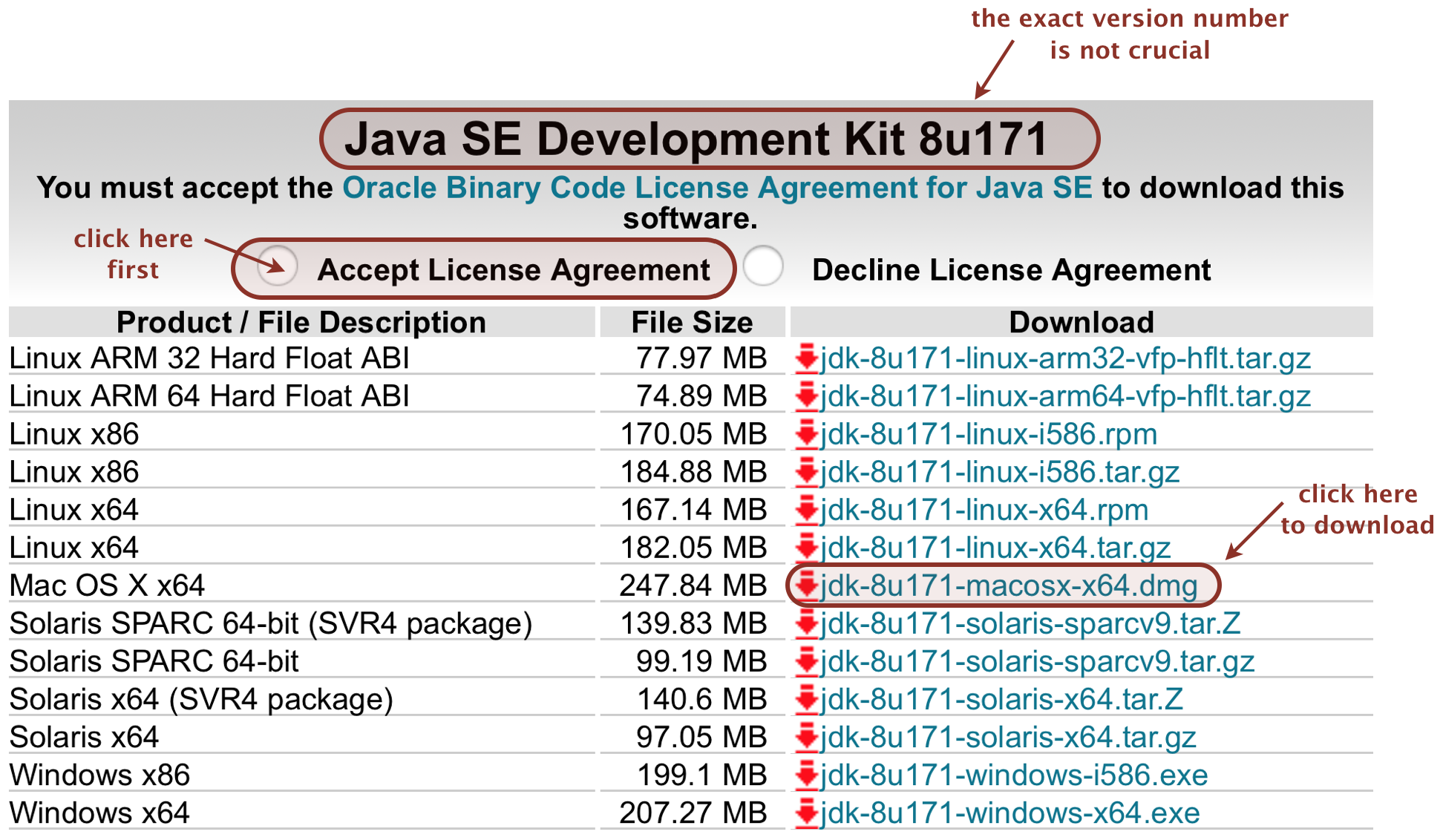
Java SE Development Kit 8u171.
In the first table, check Accept License Agreement
and the click jdk-8u171-macosx-x64.dmg,
which corresponds to the entry for Mac OS X.
The exact verison 8u171 is not essential.
- Double click the downloaded file jdk-8u171-macosx-x64.dmg to begin the installation. Enter your OS X password when prompted. We recommend all of the default options.
- Delete jdk-8u171-macosx-x64.dmg.
- Browse to
Java SE Development Kit 8u171.
In the first table, check Accept License Agreement
and the click jdk-8u171-macosx-x64.dmg,
which corresponds to the entry for Mac OS X.
The exact verison 8u171 is not essential.
-
To install,
- Download algs4.zip; if using OS X 10.12 (or higher), move it to a different folder; double-click it to unzip (if necessary). This creates algs4.app.
- Double-click algs4.app to perform the installation. If you receive a warning that algs4.app is an application downloaded from the Internet, click Open.
- Enter your OS X password when prompted.
-
If the installation succeeds, you will see the following:
- A
Terminal window containing approximately this execution log. - A Standard Drawing window containing a red bullseye and a textbook graphic.
- A
- Delete algs4.zip and algs4.app.
|
|
Now you are ready to write your first Java program.
You will develop your Java programs in an application called DrJava.
DrJava features many specialized programming tools including syntax highlighting,
bracket matching, auto indenting, and line numbering.
- The installer creates a shortcut to DrJava on the desktop. Double-click it to launch DrJava. If you receive a warning about incoming network connections, click Allow.
-
In the main DrJava window, type the Java program
HelloWorld.java exactly as it appears below. If you omit even a semicolon,
the program won’t work.
As you type, DrJava does the indenting for you.public class HelloWorld { public static void main(String[] args) { System.out.println("Hello, World"); } } -
Finally, click the Save button to save the file, using
the name
HelloWorld.java. The filename is case sensitive and must exactly match the name of the class in the Java program.
|
|
It is now time to convert your Java program into a form more amenable for
execution on a computer. To do this, click the Compile button.
If all goes well, you should see the following message in the Compiler Output
pane at the bottom:
If DrJava complains in some way, you mistyped something. Check your program carefully, using the error messages in the Compiler Output pane as a guide.
|
|
Now it is time to run your program. This is the fun part.
-
Type the following in the Interactions pane at the bottom.
By convention, we highlight the text you type in boldface.
If all goes well, you should see the following message:> java HelloWorld
Welcome to DrJava.  Working directory is /Users/<username>/Desktop
> java HelloWorld
Hello, World
- You may need to repeat this edit–compile–execute cycle a few times before it works.
|
|
The command-line provides capabilities beyond those available in DrJava,
including redirection and piping.
You will type commands in an application called the Terminal.
-
The installer creates a shortcut on the desktop to the Terminal.
Double-click it to launch the Terminal. You should see something like:
Themachine:~ <username>$
~is shorthand for your home directory/Users/username; the namemachinewill be replaced by the name of your machine; the nameusernamewill be replaced by your username. -
To confirm that the Java compiler is installed,
type the command in boldface below and check that the results match:
It’s important that you see the numbermachine:~ <username>$ javac -version javac 1.8.0_171
1.8for the Java version number, but the rest is not critical. -
To confirm that the Java interpreter is installed, type
the command in boldface below and check that the results match:
Again, it’s important that you see the numbermachine:~ <username>$ java -version java version "1.8.0_171" Java(TM) SE Runtime Environment (build 1.8.0_171-b16) Java HotSpot(TM) 64-Bit Server VM (build 1.8.0_171-b16, mixed mode)
1.8for the Java version number, but the rest is not critical.
|
|
You will use the javac command to convert your Java program into a form more
amenable for execution on a computer.
-
From the Terminal, navigate to the directory containing
HelloWorld.java, say/Users/<username>/intros/hello, by typing thecd(change directory) commands below:machine:~/Desktop <username>$ cd hello machine:~/Desktop/hello <username>$
-
Compile it by typing the
javaccommand below:
Assuming the filemachine:~/Desktop/hello <username>$ javac HelloWorld.java machine:~/Desktop/hello <username>$
HelloWorld.javais in the current working directory, you should see no error messages. -
To make our textbook libraries accessible to Java,
use the command
javac-algs4instead. For example, to compile TestAlgs4.java, which uses our standard drawing library, the auto-installer issues the following command:
At this time,machine:~/Desktop <username>$ javac-algs4 TestAlgs4.java
javac-cos226andjavac-courseraare equivalent tojavac-algs4.
|
|
You will use the java command to execute your program.
-
From the Terminal, type the
javacommand below.
You should see the output of the program.machine:~/Desktop <username>$ java HelloWorld Hello, World
-
To make our textbook libraries accessible to Java,
use the command
java-algs4instead. For example, to test standard drawing and standard audio, type the following two commands:
At this time,machine:~/Desktop <username>$ java-algs4 edu.princeton.cs.algs4.StdDraw [ displays a graphics window with some geometric shapes and text ] machine:~/Desktop <username>$ java-algs4 edu.princeton.cs.algs4.StdAudio [ plays an A major scale ]
java-cos226andjava-courseraare equivalent tojava-algs4.
|
|
You can use
Findbugs,
PMD,
and
Checkstyle
and
to check the style of your programs and identify common bug patterns.
-
To run Findbugs 3.0.1, type the following command in the Terminal:
The argument must be a list ofmachine:~/Desktop/hello <username>$ findbugs-algs4 *.class Running findbugs on HelloWorld.class:
.classfiles. Here is a list of bug descriptions. -
To run PMD 5.8.1, type the following command in the Terminal:
The argument must be either the name of a singlemachine:~/Desktop/hello <username>$ pmd-algs4 .
.javafile or a directory containing one or more.javafiles. Here is a list of bug patterns. -
To run Checkstyle 8.2, type the following command in the Terminal:
The argument must be a list ofmachine:~/Desktop/hello <username>$ checkstyle-algs4 *.java Running checkstyle on HelloWorld.java: Starting audit... Audit done.
.javafiles. Here is a list of available checks. - COS 226 students should use the following versions of these commands, to match the corresponding
versions in the autograder:
machine:~/Desktop/hello <username>$ findbugs-cos226 HelloWorld.class
Running findbugs on HelloWorld.class:

machine:~/Desktop/hello <username>$ pmd-cos226 .

machine:~/Desktop/hello <username>$ checkstyle-cos226 HelloWorld.java
Running checkstyle on HelloWorld.java:
Starting audit...
Audit done.
- Coursera students should use the following versions of these commands, to match the corresponding
versions in the autograder:
machine:~/Desktop/hello <username>$ findbugs-coursera HelloWorld.class
Running findbugs on HelloWorld.class:

machine:~/Desktop/hello <username>$ pmd-coursera .

machine:~/Desktop/hello <username>$ checkstyle-coursera HelloWorld.java
Running checkstyle on HelloWorld.java:
Starting audit...
Audit done.
|
|
I previously used the introcs.app installer
from the textbook Computer Science: An Interdisciplinary Approach.
Should I use the algs4.app installer?
Yes, we recommend using the algs4.app installer because it will install
algs4.jar, as well as the
corresponding commands javac-algs4 and java-algs4.
How long should the installer take? Once downloaded, the Oracle Java installer should take about 10 seconds and the algs4.app installer should take about 20 seconds. If you have virus detection software running (such as McAfee Endpoint), each could take 5–10 minutes (or more).
The installer didn’t work on my machine. What should I do? Please read the next few Q+As. If these don’t resolve the issue, please contact a staff member to identify what went wrong.
When I run the installer, I get the error message “bash: /Volumes/Macintosh: No such file or directory.” Your user account and OS must be on the same volume.
When I run the installer, the Terminal windows just waits after asking for a password. But, I don’t even have a password-enabled account. You must have a non-blank password. Here are instructions for resetting a user’s password.
When I run the installer, I get an error like
“bash: /private/var/folders/70/n8stth1d1x33hrw8n07kf1280000gn/T/AppTranslocation/45FC25B7-17E3-46DF-AC27-9A7EF56DDFD3/d/algs4.app/Contents/Resources/launcher.sh: No such file or directory.” What should I do?
This is likely due to OS X Sierra path randomization.
Use the Finder to move algs4.app to some other folder and try again.
When I run the installer, I receive the following error after I enter my password: “bash: /???/Users/<username>/Desktop/algs4.app/Contents/Resources/launcher.sh: No such file or directory.” We’re not sure what causes this (but we think it is related to users with dual-boot systems / USB drives). Try opening a Terminal windows and typing
What does the installer do? In short, it downloads, installs, and configures Checkstyle, Findbugs, DrJava, and our textbook libraries. Here is a more detailed list:
- Checks that Java is installed.
- Downloads the textbook library from algs4.jar.
- Downloads the Java wrapper scripts javac-algs4 and java-algs4.
- Downloads and installs Findbugs 3.0.1 from findbugs.zip. Downloads our findbugs configuration file findbugs.xml and wrapper script findbugs-algs4.
- Downloads and installs PMD 5.8.1 from pmd.zip. Downloads our PMD configuration file pmd.xml and wrapper script pmd-algs4.
- Downloads and installs Checkstyle 8.2 from checkstyle.zip. Downloads our checkstyle configuration file checkstyle-algs4.xml and wrapper script checkstyle-algs4.
- Downloads and installs the latest stable version of
DrJava,
from DrJava.zip.
Creates a shortcut to DrJava on the Desktop.
Downloads the DrJava configuration file from
.drjava
to
/Users/<username>/.drjava. Note that this will overwrite any existing.drjavaconfiguration file. - Tests that the installation succeeded by compiling and executing TestAlgs4.java.
Why does the installer need my password?
The installer copies files into
/usr/local/bin and
/usr/local/algs4,
which require elevated privileges.
How do I completely uninstall algs4.app?
- Delete the directory
/usr/local/algs4. - To uninstall DrJava, delete the following two files:
-
/Applications/DrJava.app. -
/Users/<username>/.drjava.
-
- To uninstall the Java, Findbugs, PMD, and Checkstyle, wrapper scripts,
delete the following files:
-
/usr/local/bin/javac-{algs4,cos226,coursera} -
/usr/local/bin/java-{algs4,cos226,coursera} -
/usr/local/bin/findbugs-{algs4,cos226,coursera} -
/usr/local/bin/pmd-{algs4,cos226,coursera} -
/usr/local/bin/checkstyle-{algs4,cos226,coursera}
-
- Delete the shortcut to DrJava and Terminal on the Desktop.
What happens if I rerun the installer? It will re-download, install, and configure Findbugs, PMD, Checkstyle, DrJava, and our textbook libraries.
Can I use a different version of Java? Any version of Java 8 (either Oracle or OpenJDK) should work fine. Note that neither Java nor Findbugs work with Java 9.
I have both Java 8 and Java 9 installed, but the default version is Java 9. How do I change the default version back to Java 8? To disable Java 9, type the following commands in the Terminal:
You should still be able to use Java 9 by specifying the full path to
javac and java, e.g.,
/Library/Java/JavaVirtualMachines/jdk-9.0.1.jdk/Contents/Home/bin/javac.
Why I try to run DrJava, I get the following error message. How should I proceed?
Are you sure that you are using the version of DrJava that was installed by our auto-installer (and not downloaded from the DrJava website)? We suggest deleting any older versions of DrJava and using the one that the auto-installer copied to the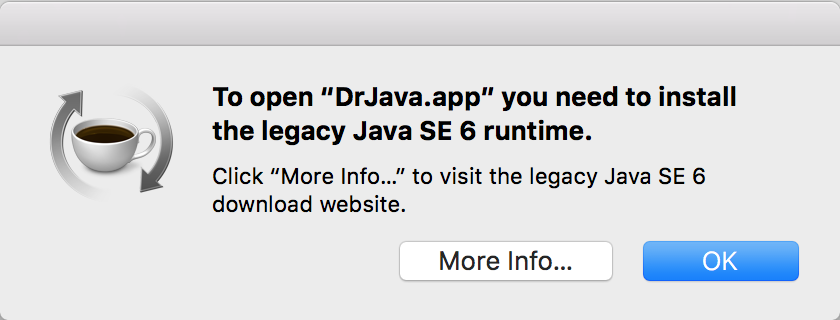
/Applications
directory.
Can I use a different IDE? Yes you can use another IDE (such as Eclipse) but you will have to configure the IDE properties yourself (such as the classpath).
When I compile or execute a program in Terminal that uses one of the
textbook libraries, I get an error that it cannot find the library. How can I fix this?
Be sure that you are using the wrapper scripts /usr/local/bin/javac-algs4
and /usr/local/bin/java-algs4.
Which shell should I use in the Terminal? The default shell in Mac OS X is bash, but feel free to use a different one if you prefer.
What’s the sha256sum of algs4.zip?
483786a1197b7282b92c846667e847cd31a97a4e42bca71f95e21a2ce668fc33